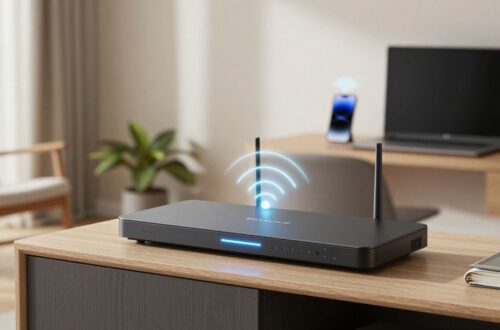
WiFi router buying guide: How to choose the right router for your home
Key Takeaways
A good router choice starts with your home and internet plan, not the biggest number on the box. Use these points to narrow the options before you buy.
- Match router capacity to your internet plan and the way your household uses the connection.
- Choose Wi-Fi standards and frequency bands that your devices can use.
- Consider your home’s layout and building materials when assessing coverage.
- Check wired ports, security features, and any ongoing fees alongside wireless speed.
- Prioritise practical needs over features you are unlikely to use.
Start with your internet plan and household needs
Begin with the service you already pay for and what happens on your network during a typical busy evening. A router can affect how well your home network works, but it cannot make an internet plan faster than the service supplied to your home. Think about the number of people, devices, and activities sharing the connection. That gives you a more useful starting point than shopping by headline speed alone.
Check your plan’s download and upload speeds
Check your plan details or ask your internet provider for its advertised download and upload speeds. Download speed affects activities such as streaming and receiving files, while upload speed matters when sending large files or making video calls. Your connection’s actual performance can vary, so treat plan speeds as a guide rather than a promise that every device will reach them. If your plan is modest, a premium router may not make everyday browsing feel noticeably different.
Consider how many people and devices connect at once
Count the people who use the network at the same time, then think about the devices they use. Phones, laptops, televisions, consoles, cameras, and smart-home equipment can all contribute to network demand, even if some use little data most of the time. A household with several simultaneous streams and calls may benefit more from a router that handles multiple active connections well than from one chosen only for a high peak-speed figure. Leave room for new devices, but do not pay extra just for a hypothetical future household.
Identify activities that need reliable, low-latency connections
Some activities are more sensitive to delay or brief interruptions than others. Online gaming, video meetings, and remote access to work systems can feel less reliable when the network is congested or the signal is weak. Streaming and downloads may tolerate short variations more easily, though they still need a steady connection. Identify your household’s most demanding activities and use those to judge which features might matter.
Decide whether you need a router, modem-router combo, or mesh system
A standalone router connects to a separate modem or other internet terminal, while a modem-router combo combines those functions in one device. Which setup you need depends on the equipment and connection type supplied by your provider, so check compatibility before replacing anything. A mesh system uses multiple units to extend Wi-Fi through the home; it is a coverage approach rather than a different internet plan. Confirm what your current equipment does first, as buying the wrong type can leave you without a usable connection.
Choose the right Wi-Fi standard and frequency bands
Wi-Fi standards describe generations of wireless technology, but a newer label does not guarantee a better experience in every home. The devices connecting to the router, the layout of your home, and the internet plan all affect what you will notice. Frequency bands also involve trade-offs between reach and available capacity. Compare the features you can use now with the cost of stepping up to newer hardware.
Compare Wi-Fi 6, Wi-Fi 6E, and Wi-Fi 7
Wi-Fi 6 is a widely supported generation designed to manage wireless connections efficiently, including when multiple devices are active. Wi-Fi 6E extends compatible Wi-Fi 6 equipment into the 6 GHz band, while Wi-Fi 7 is a newer generation with features that compatible devices can take advantage of. The benefits depend on having devices that support the relevant standard and on local wireless conditions. Check the precise model specifications rather than assuming every feature associated with a generation appears on every router.
Understand the 2.4 GHz, 5 GHz, and 6 GHz bands
The bands differ in their balance of reach, speed potential, and congestion. The table offers a broad comparison; walls, interference, device support, and router placement can change the result in your home.
| Band | General strength | Practical consideration |
|---|---|---|
| 2.4 GHz | Often reaches farther through a home | Can be more congested, and compatible devices may have lower speed potential |
| 5 GHz | Offers a balance of capacity and reach | Signal can weaken more quickly through walls than on 2.4 GHz |
| 6 GHz | Adds another band for compatible devices | Requires compatible equipment and may have less reach through obstacles |
Use the comparison as a starting point, not a guarantee of coverage or speed. A router that supports more bands is only useful if your devices can connect to them and the signal reaches the rooms where you need it.
Check whether your devices support the router’s features
Your router and connected devices need compatible wireless capabilities to use a particular standard or band. Check the specifications for your main laptop, phone, television, or other high-use device, especially if you are considering paying more for a feature. Older equipment can still connect to many newer routers, but it may not use the newest options. A mixed household of devices is normal, so base your decision on the equipment that matters most rather than one newest device alone.
Weigh future-proofing against your budget
A newer router may give you access to features that become useful as you replace devices, but future-proofing has limits. Consider how long you expect to keep the router and whether the extra cost buys features you are likely to use during that period. If your internet plan and devices cannot benefit from a higher tier today, a less expensive model may be the more sensible fit. Make the trade-off deliberately instead of treating the newest standard as an automatic upgrade.
Match router coverage to your home
Coverage is shaped by more than the size of your home. Walls, floors, furniture, router position, and neighbouring wireless networks can all affect the signal from room to room. A single router may be enough in an open, compact layout but less suitable for a long or multi-level home. Think about where you actually use Wi-Fi before settling on a system.
Account for square footage, floors, and building materials
Treat a coverage estimate on a product page as a rough guide, not a promise that every room will have a strong signal. Dense walls, metal surfaces, and floors between levels can make it harder for a signal to travel. A router placed at one end of a home may also leave distant rooms with a weaker connection than its advertised coverage suggests. Map the rooms where you need dependable service and consider obstacles between those spaces and the router.
Compare traditional routers with mesh Wi-Fi systems
A traditional router broadcasts Wi-Fi from one main location. A mesh system places additional units around the home to extend coverage, which can be useful when one router struggles to reach distant rooms. The extra units need sensible placement and still depend on a good connection back to the network. Compare the cost and setup of a mesh system with the actual areas where your current coverage falls short.
Look for useful placement and wired backhaul options
Router placement can make a difference before you buy additional equipment. A central, open position is often a more useful starting point than a cupboard or a corner behind other electronics. If you choose mesh, check whether the units can use Ethernet cabling for backhaul, meaning the connection between mesh units can run over a wired link. This option may suit homes where cabling is already available, though it is not essential for every setup.
Recognize when coverage claims may not match real-world results
Manufacturers’ coverage figures usually describe an expected area under particular conditions, not a guarantee of uniform performance in every building. Your walls, interference, device capabilities, and placement all change what you experience. If you can, check independent testing that describes its test environment and look for assessments across multiple rooms, not just near the router. Keep your expectations realistic: the best solution is the one that improves the rooms you use, not the one with the biggest coverage claim.
Evaluate ports, speed, and wired connectivity
Wireless features get most of the attention, but the router’s physical connections can matter just as much. Check the ports against your internet service, current equipment, and any devices you prefer to connect by cable. A fast Wi-Fi rating will not compensate for a port that limits the wired connection you need. Consider the complete path from your internet connection to the devices in your home.
Check WAN and LAN port speeds
The WAN port links the router to your modem or internet terminal, while LAN ports connect wired devices within your home network. Check the speed rating of each port and how many LAN connections are available. If the WAN port is slower than your internet service, it can become a bottleneck; a slower LAN port can also limit the speed of a wired device. Read the specifications for the exact model, since port configurations can differ within a product range.
Decide whether you need multi-gigabit Ethernet
Multi-gigabit Ethernet supports wired speeds above the common one-gigabit rate, but you will only benefit if the rest of your setup can use it. Consider your internet service, modem or terminal, connected devices, and any network equipment between them. For many households, standard gigabit ports are sufficient; faster ports are more relevant when a service or local network workload exceeds that capacity. Avoid paying for ports that do not match a real requirement.
Look for USB ports and other connections you’ll use
Some routers include USB ports or other connections for particular uses, but the details vary by model. Check the manufacturer’s specifications to confirm what a port supports rather than assuming that its presence means it will work with your preferred device or service. Also consider the number and position of Ethernet ports if you have a television, console, computer, or other equipment to wire directly. A short list of connections you will use is more helpful than a long list of features you may never need.
Understand how advertised wireless speeds differ from actual performance
A router’s advertised wireless speed is a theoretical combined figure based on supported bands and configurations. A single device will not necessarily reach that number, and real performance changes with distance, obstacles, interference, and the device’s own capabilities. Your internet plan can impose another limit on online speed, even when the local Wi-Fi link is faster. Use headline ratings to compare broad product tiers, then look for realistic testing and port specifications to judge likely performance.
Review security, privacy, and management features
A router sits at the centre of your home network, so security and ongoing support deserve a place in your comparison. Look for clear information about wireless encryption, software updates, and how the router is managed. Features such as parental controls or network monitoring can be useful, but their availability and terms vary. Read the product details closely rather than assuming a feature is included or free.
Look for WPA3 and automatic firmware updates
WPA3 is a modern Wi-Fi security standard; check whether the router supports it and whether your devices can use it. Firmware updates can address software issues and support ongoing security, so find out how updates are delivered and whether you can enable automatic installation. A router that receives updates still needs appropriate setup, including a strong administrator password. Review the update policy before buying, particularly if you expect to keep the device for several years.
Compare parental controls and guest network options
Parental controls can differ in what they allow you to manage, so check the actual functions rather than relying on a feature name. A guest network can provide visitors with a separate way to connect without sharing your main Wi-Fi password. Confirm whether these options are built in, require an account, or depend on a paid subscription. Choose controls that fit your household and are straightforward for you to maintain.
Check for VPN support and network monitoring
VPN features are not identical across routers: some models may support a VPN connection in a particular way, while others may not include it. Read the exact model specifications and documentation to understand what is supported before treating it as a deciding feature. Network monitoring tools can also vary, from basic device lists to more detailed controls. Check what information is visible, how it is presented, and whether access requires an app or account.
Review app requirements, subscriptions, and privacy policies
Some routers can be set up or managed through a mobile app, while others also offer browser-based management. Check whether an account is required and whether useful features depend on an ongoing subscription. The privacy policy can explain what information the company collects through its app or services and how it is handled. If you prefer a simpler setup, factor the required app and account arrangements into your decision.
Compare total cost and make your choice
The purchase price is only one part of choosing a router. You may also need to consider a modem, extra mesh units, paid software features, or equipment supplied by your provider. Support and update policies can matter over the time you own the device, too. Settle on the requirements that genuinely affect your home, then compare models against those rather than buying the longest feature list.
Set a budget for the router and any ongoing fees
Decide on a comfortable price range and include any costs that could continue after purchase. Check whether features you care about require a subscription, and whether a coverage solution would mean buying additional units. If you are replacing provider-supplied equipment, confirm whether it can be returned or must remain in place for your service. Comparing the complete setup helps prevent a low upfront price from disguising a less suitable total cost.
Compare warranties, support, and update policies
Review the warranty period and what it covers, as well as the support options available if setup or troubleshooting becomes difficult. Update policies are worth checking alongside the warranty because software support affects how long the device remains current. Look for clear information about how updates are provided and how long the manufacturer intends to support the model. These details can be less prominent than speed claims, but they are part of the ownership experience.
Prioritize features that address your home’s specific needs
Return to the problems you identified at the start: weak coverage in a particular room, too few wired connections, or a network that struggles when everyone is online. Rank those needs, then focus on the features that address them directly. More bands, faster ports, or added controls are valuable only when they match your devices and routine. A well-chosen mid-range router can be a better fit than an expensive model built around features you will not use.
Use a final checklist before buying
Before you decide, run through a short list that links the product details to your own setup. This helps you catch compatibility and cost issues while there is still time to compare options.
- Confirm the router works with your internet connection and existing equipment.
- Match its Wi-Fi standards, bands, and ports to the devices you use.
- Check whether its coverage approach suits your home’s layout.
- Review security updates, required apps, and any ongoing fees.
If those points check out, compare the remaining options on the features you value most. The right router is the one that fits your service, space, and habits without asking you to pay for capabilities you do not need.

You May Also Like
WiFi router buying guide: How to choose the right router for your home
WiFi router buying guide: How to choose the right router for your home