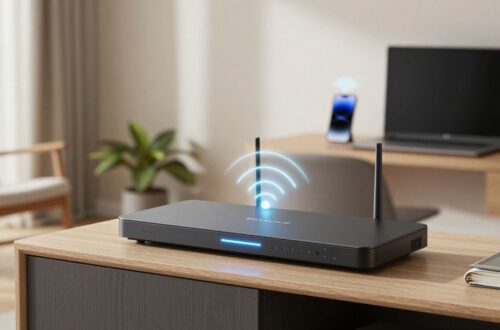
WiFi router buying guide: How to choose the right router for your home
Key Takeaways
A suitable router should match your internet plan, home layout, connected devices and willingness to manage the network. The cheapest option is not always the best value, particularly if coverage problems lead you to buy extra equipment later.
- Count your users, devices and busiest simultaneous activities before shopping.
- Treat advertised Wi-Fi speeds as theoretical maximums, not guaranteed results.
- Choose between a single router and a mesh system based on coverage and layout.
- Check security support, software updates, ports and ongoing subscription costs.
- Test the network in the rooms where you work, stream and make calls.
1. Assess your home network needs
A router is the traffic controller for your home network, so the right choice depends on more than the size of your internet bill. Start with the people, devices and activities competing for the connection. A little planning can prevent you from paying for performance you will never use, or buying a basic model that struggles during busy periods.
Count users, devices, and simultaneous connections
Make a rough list of phones, computers, televisions, tablets, consoles, cameras, speakers, printers and smart-home equipment. The number that matters most is not simply how many devices exist, but how many are active at the same time. A household with two people on video calls and several devices streaming needs more breathing room than a household with many mostly idle devices.
Also consider visitors. A guest network can keep visitors separate from your main devices, but those connections still use the router and your internet service. If the household is growing or you regularly work from home, allow some headroom rather than choosing a router that only meets today’s minimum.
Match router performance to your internet plan
Check the speed tier you pay for and the type of connection entering the home. A basic router may be adequate for a modest plan, while a faster fibre or cable service can expose the limits of an older model, especially over wireless. Your internet provider’s advertised speed is only one part of the result; the router, device, distance and local interference all matter.
There is little value in paying a premium for a router built for speeds your connection cannot deliver. On the other hand, a small amount of headroom can make sense if you expect to upgrade your plan, add demanding devices or keep the router for several years. Focus on the whole network rather than a large speed figure on a box.
Consider your home’s size and layout
Floor area is only a starting point. Thick masonry, concrete floors, metal framing, foil-backed insulation and enclosed rooms can weaken a wireless signal more than a few extra metres of open space. A centrally placed router in a small, open home may cover everything, while a larger or divided home may need a more deliberate arrangement.
Draw a simple floor plan and mark the rooms where reliable service matters. Include the router’s likely location, work areas, bedrooms and any outdoor or garage spaces you expect to use. This exercise often reveals that moving the router is a better first step than buying a more powerful one.
Identify high-bandwidth activities and dead zones
List the activities that are least tolerant of a weak or inconsistent connection. Streaming, large downloads, cloud backups, video meetings and online games can compete with ordinary browsing when they happen together. The issue may be capacity, coverage, interference or latency, and a more expensive router will not automatically fix every one of those problems.
Walk through the home with your phone or laptop and note rooms where pages load slowly, calls drop or devices switch to mobile data. Test at different times, because an apparent dead zone may actually be local congestion. Coverage comes before headline speed when the signal cannot reliably reach the room you use.
2. Understand Wi-Fi standards and speed ratings
Wi-Fi names and speed labels can make router shopping look more technical than it needs to be. Standards describe how a router and compatible devices communicate, while ratings usually combine several theoretical streams and bands. Use them as a guide to capability, not as a promise about the speed in one room.
Compare Wi-Fi 6, Wi-Fi 6E, and Wi-Fi 7
Wi-Fi 6 is designed to handle busy networks more efficiently than older generations, particularly when several devices are active. Wi-Fi 6E extends that family into the 6 GHz band where compatible equipment can use additional spectrum. Wi-Fi 7 is a newer generation with further improvements, but its practical value depends on having compatible client devices and a network that can take advantage of them.
A newer standard is not automatically the right purchase. Consider how long you intend to keep the router, whether your phones and computers support the relevant generation, and whether your internet plan or local network is fast enough to benefit. For many homes, a well-placed current-generation router is more useful than a poorly positioned premium model.
Interpret theoretical speed numbers
The speed printed on a router often combines the maximum rates of multiple bands and streams under ideal conditions. Your phone or laptop may support only one band, fewer antennas or an older standard, so it cannot use the entire combined number. Distance, walls, interference and other network traffic reduce real-world performance as well.
Use the rating to compare products within a similar class rather than treating it as a target you should see in every room. Wired tests can help isolate the internet connection from wireless performance. If a cable test is fast but a distant wireless test is slow, coverage or interference is more likely to be the problem.
Evaluate channel width and supported bands
Routers may support different channel widths and combinations of the 2.4 GHz, 5 GHz and 6 GHz bands. Wider channels can provide more capacity in suitable conditions, but they may be more vulnerable to congestion and are not useful if your devices do not support them. The 2.4 GHz band generally travels farther and handles obstacles better, while higher-frequency bands can provide greater capacity at shorter range.
Read the specifications for the bands and channel widths rather than relying on a single marketing label. A router that gives you sensible band choices and lets you manage them is easier to adapt to your home. In a crowded apartment, a narrower, cleaner channel can sometimes be preferable to the widest available setting.
Check device compatibility before upgrading
Your router and client devices work as a system. List the devices that matter most, then check which Wi-Fi generation, bands and security modes they support. Older equipment may connect to a newer router, but it may not receive the newer standard’s full benefits.
Do not replace every device simply to justify a router upgrade. It is usually more practical to prioritise the computer, phone, television or other equipment where faster or steadier wireless service would make a noticeable difference. Compatibility should inform the purchase, not become an excuse to buy features you cannot use.
3. Choose between single routers and mesh systems
The basic choice is between one central router and a system that uses several coordinated units. A single router is simpler and can be excellent when the signal has a clear path through the home. Mesh systems are useful when walls, floors or distance make one wireless point unreliable, but they add equipment, placement decisions and another layer of cost.
When a traditional router is the better choice
A single router often suits an apartment, small home or open-plan layout where the main rooms are reasonably close together. It is easier to install, troubleshoot and replace, and you avoid the wireless links between multiple units. If your current problem is caused by poor placement, moving one router may solve it without any additional hardware.
A traditional setup also works well when you can connect distant rooms with Ethernet. You can place the router sensibly and use a wired access point or other network equipment where needed, rather than creating several wireless hops. The best arrangement is the one that gives you dependable service with the fewest moving parts.
How mesh Wi-Fi improves whole-home coverage
Mesh systems use multiple units to extend coverage across rooms or levels, with devices generally connecting to the unit that offers the better path. They can be more convenient than manually switching between separate networks, particularly in a home with awkward dead zones. They do not remove the need for good placement: a node placed in a weak area may simply repeat a weak connection.
Think of mesh as a coverage solution, not a guaranteed speed upgrade. Each extra wireless hop can affect throughput, and a busy system still shares the available capacity. If one room is slow because the internet service itself is limited, adding nodes will not increase that service’s maximum speed.
Assess wired backhaul and wireless backhaul options
A wired backhaul uses Ethernet to carry traffic between mesh units, leaving more wireless capacity available for phones, computers and other devices. It is often the most consistent approach when you have suitable cabling. A wireless backhaul is easier to install, but the nodes must communicate over the air as well as serve your devices.
Before buying, check whether the system supports the backhaul arrangement you can actually use. Count the cables, ports and wall outlets required, and consider whether the nodes have a strong line of communication with one another. A system’s advertised coverage does not tell you whether your particular walls and floor plan will produce good results.
Account for expansion, placement, and installation
Expansion can be useful if your needs change, but it can also become an expensive response to an initial misdiagnosis. Choose a system that can add compatible units if you genuinely expect to extend coverage, and check how those units are managed. Avoid placing a node at the far edge of coverage; it needs a reasonably strong connection back to the main router or another node.
Sketch possible locations before you purchase. Keep units clear of large appliances, enclosed cabinets and obvious sources of interference, then test each location rather than assuming the first arrangement is best. Installation should feel manageable, not like a permanent commitment to a complicated network.
4. Evaluate essential router features
Once coverage and standard are clear, compare the practical features that affect everyday use. Ports, band design, traffic controls and guest access often matter more than an extra theoretical speed tier. A specification sheet is useful only when you connect each feature to something you actually do at home.
Compare dual-band, tri-band, and quad-band designs
Dual-band routers use the 2.4 GHz and 5 GHz bands. Tri-band designs add another band, which can provide more room for devices or a dedicated connection between mesh units. Quad-band models add still more radio capacity, but the benefit depends on compatible devices, network traffic and the layout of the system.
More bands can help a busy household, but they do not guarantee better coverage. You may pay for capacity that your devices cannot use, or for a mesh arrangement that still has a weak backhaul. Compare how the additional band is intended to be used and whether that use fits your home.
Look for Ethernet ports and multi-gig support
Count the wired devices you expect to connect, including televisions, desktop computers, consoles, network storage and access points. Check both the number and speed of the Ethernet ports. A router with limited or slower ports can become a bottleneck even when its wireless specification looks impressive.
Multi-gig support matters most when your internet service, local network or storage equipment can use it. Otherwise, ordinary gigabit connectivity may be sufficient. Leave room for the devices you might add, but do not treat a faster port as valuable in isolation from the rest of your setup.
Consider Quality of Service and traffic management
Quality of Service, often called QoS, can help you decide which traffic receives priority when the connection is busy. That may be useful for a work call or another latency-sensitive activity competing with downloads and streaming. The controls vary widely, so look for plain descriptions of what you can prioritise and how much manual adjustment is required.
Do not expect QoS to create extra bandwidth. It can organise a crowded connection, but it cannot repair a weak signal or overcome a slow internet plan. If the feature is difficult to understand, a simple and stable configuration may serve you better than a long list of advanced controls.
Review parental controls and guest networking
Parental controls can include schedules, device profiles, content restrictions or internet pauses, depending on the router. Check exactly what is included and whether the controls work locally or require an online account. Guest networking should let visitors access the internet without placing them on the same network as your personal computers and smart-home devices.
Look for controls you can explain and maintain. A separate guest network, a clear device list and straightforward pause or schedule options are usually more useful than a long feature list that you will not revisit. Test these settings before relying on them.
5. Prioritize security and software support
A router sits between your devices and the wider internet, so security support deserves the same attention as speed. Hardware can remain physically functional long after its software support has faded. Ask how the router is updated, how the administrator account is protected and what information the setup process requires.
Check for WPA3 and automatic security updates
WPA3 is a newer wireless security standard, but your older devices may not support it. Check whether the router supports WPA3, whether it can use a compatible transition mode and whether you can update its security settings without replacing the hardware. Use a strong, unique Wi-Fi password and change any default administrator credentials during setup.
Automatic updates can reduce the chance that important fixes are left unattended, provided the manufacturer continues to release them. Read how updates are applied and whether you receive a notification when firmware changes. Convenience is useful, but you should still know which device is managing your home network.
Evaluate the manufacturer’s app and web interface
The setup app or web interface is where you will name networks, view connected devices, adjust settings and troubleshoot problems. A clean interface can save time, while a confusing one may discourage you from changing an unsafe default. Check whether the functions you care about are available both locally and through an app.
You do not need the longest list of controls. You need reliable access to the settings that matter, sensible explanations and a way to recover if a change causes trouble. If the router requires a phone app for basic administration, make sure that arrangement suits you before buying.
Review privacy practices and account requirements
Some routers can be configured entirely on the local network, while others encourage or require an online account. Read the privacy information and setup requirements before you commit. Consider what data may be collected, which services depend on the account and whether optional features can be turned off.
This is also the point to check cloud-dependent functions. A setting that looks free at purchase may rely on an account or service that changes later. Choose a router whose administration and core networking functions remain clear and usable on terms you understand.
Confirm the router’s update policy and lifespan
Look for a stated firmware support period, update history or support page for the model. If the manufacturer does not clearly explain how long security fixes are expected, treat that uncertainty as part of the purchase decision. A router should not be judged only by how fast it is on its first day.
Keep records of the model, firmware version and purchase date. When support ends, replacement is usually safer than continuing to rely on an abandoned device, even if it still appears to work. A modest router with dependable support can be a better long-term choice than a more advanced model with an unclear future.
6. Calculate the total cost of ownership
The price on the shelf is only the starting point. Include extra nodes, cables, adapters, subscription features and the likely replacement interval when comparing options. This gives you a clearer view of value without assuming that the most expensive router will deliver the best experience in your home.
Compare router prices with rental fees
If your internet provider rents or supplies a router, check what is included and whether you can use your own equipment. Compare the ongoing rental amount with the purchase price over the period you expect to keep the device. Also check whether returning the supplied hardware affects support or requires a particular configuration.
A purchased router may offer more control, but ownership also means you handle updates, troubleshooting and eventual replacement. Treat those responsibilities as part of the cost. Do not make the comparison using purchase price alone.
Budget for mesh nodes, adapters, and accessories
A mesh system may require two or more units to solve the coverage problem, while a single router may require an Ethernet switch, longer cable or access point. Add those items before deciding which option is cheaper. If the router will sit in an awkward location, you may also need a stand, cable management or a suitable power arrangement.
A simple comparison table can keep the calculation grounded in your actual setup rather than the base product price.
| Cost item | Single-router setup | Mesh or extended setup |
|---|---|---|
| Main router or primary unit | Usually one device | Primary unit plus compatible nodes |
| Wired expansion | May need a switch or access point | May need Ethernet backhaul equipment |
| Coverage accessories | Cable or access point if required | Additional node, cable or power arrangement |
| Ongoing services | Check for optional subscriptions | Check each feature and node requirement |
After adding these items, compare the total with the improvement you expect in the rooms that matter. A lower-cost arrangement that leaves a dead zone unresolved is not cheaper in practice.
Understand subscription-based features
Some routers place advanced controls, security services or reporting behind a recurring subscription. Read the product page and terms carefully so you know which functions remain available without payment. A subscription may be reasonable for a feature you genuinely want, but it should not be an accidental part of your household budget.
Record the recurring price and what happens if you cancel. Check whether basic networking, firmware updates and guest access continue to work. If a feature is central to your decision, make sure you understand whether it is included permanently or only for a trial period.
Weigh performance improvements against upgrade costs
Compare the problem you are trying to solve with the cost of the proposed upgrade. If the issue is a poor router location, moving it may help more than buying a faster model. If the issue is an old device, replacing that device may be more sensible than replacing the entire network.
Prioritise improvements you can measure: stronger coverage in a work room, steadier calls, faster local transfers or fewer dropouts. A router that improves those specific outcomes is more valuable than one that simply has a longer specification list.
7. Install, configure, and test your new router
Installation is part of the purchase, not an afterthought. Give yourself time to set up the network, update the firmware and test the rooms you use most. Start with a simple configuration, then add optional controls once the basic connection is stable.
Choose an effective router location
Place the main router as centrally and openly as your home allows, at a useful height and away from enclosed cabinets or large metal objects. Keep it near the connection point where practical, but do not automatically accept a poor corner location if a suitable cable run can improve placement. For mesh units, position each node where it still receives a strong connection to the network.
Do not hide the router behind furniture simply to make the room look tidier. Wireless signals need a reasonable path, and heat can also become a concern in cramped spaces. Small placement changes are worth testing before you adjust more complicated settings.
Set up network names, passwords, and administrator access
Give the wireless network a name you can recognise without revealing unnecessary personal information. Use a long, unique password, and use a different password for administrator access. Update the firmware during setup, then disable features you do not need rather than leaving every option active.
If you are replacing an old router, decide whether to reuse the former network name and password. Reusing them can make reconnecting devices easier, but it may also carry forward old access you would rather remove. Either way, review the connected-device list once the network is running.
Measure coverage, speed, and latency in key rooms
Test from the rooms where you work, study, stream and make calls, rather than standing beside the router. Run several tests at different times and compare wired results with wireless results where possible. Pay attention to stability and latency as well as download speed, since a fast but inconsistent connection can still be frustrating.
Keep a short record of the results and the test location. This gives you a baseline for judging a placement change or a firmware update. It also helps separate an internet-service issue from a wireless coverage issue.
Troubleshoot interference and connection problems
When a connection is unreliable, change one thing at a time. Move the router or node, try a different wireless channel or band, reduce unnecessary traffic and check whether a particular device is causing the problem. Restarting equipment can help temporarily, but repeated dropouts usually deserve a more careful diagnosis.
Work through the following order before replacing hardware:
- Confirm the internet service works reliably over a wired connection.
- Check the router’s placement, power supply and firmware version.
- Test the affected device near the router and in the problem room.
- Compare the 2.4 GHz and 5 GHz connections where both are available.
This process tells you whether the fault is with the service, the router, the environment or one device. If the problem remains after basic checks, contact your internet provider or the router manufacturer with your notes and test results rather than guessing at another upgrade.


You May Also Like
WiFi router buying guide: How to choose the right router for your home
WiFi router buying guide: How to choose the right router for your home